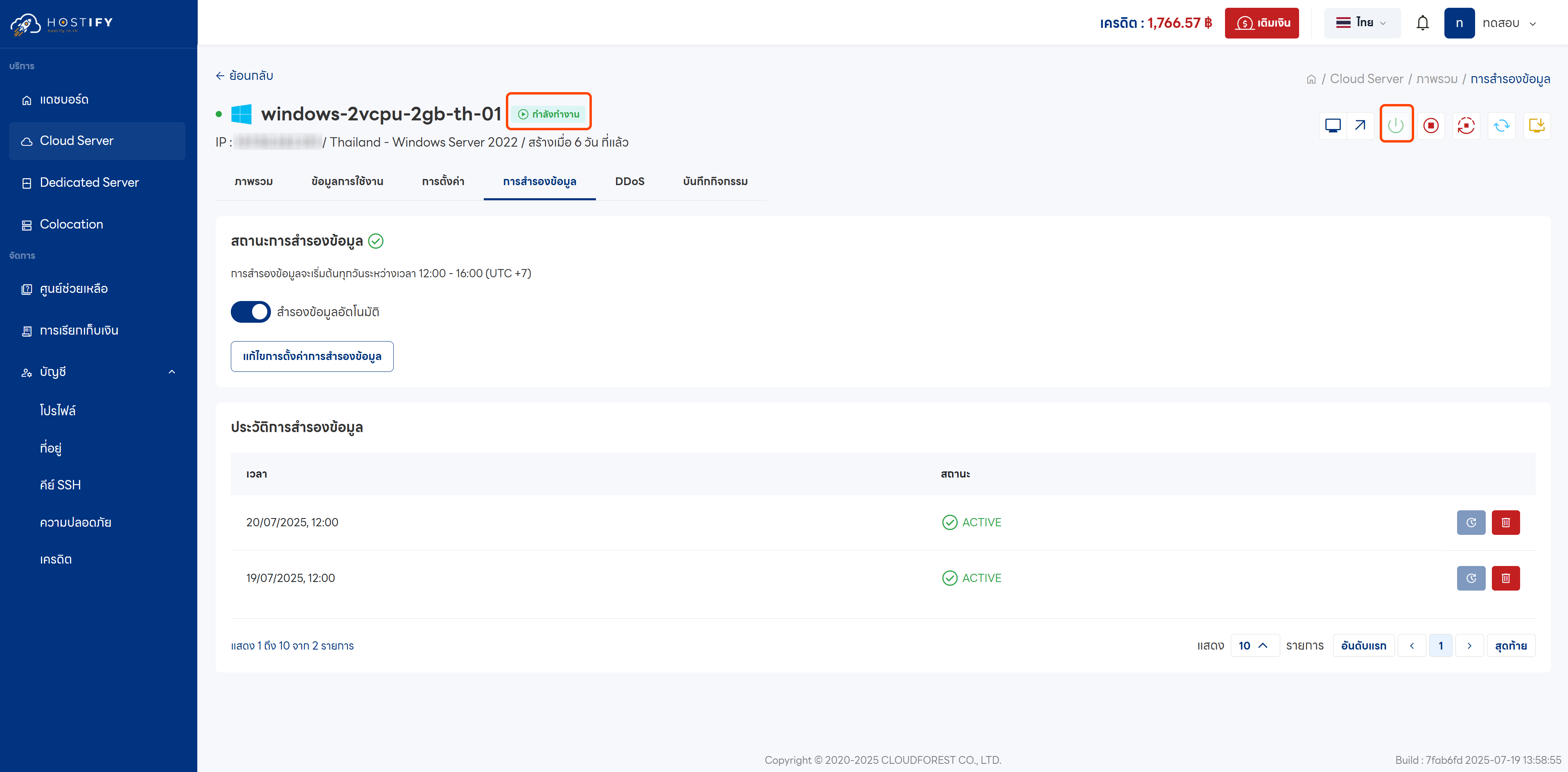
Restoring a Cloud Server from Backup
Requirements:
- A Cloud Server with automatic backup enabled and existing backup files
- The Cloud Server must be in a Stopped state
Steps to Restore
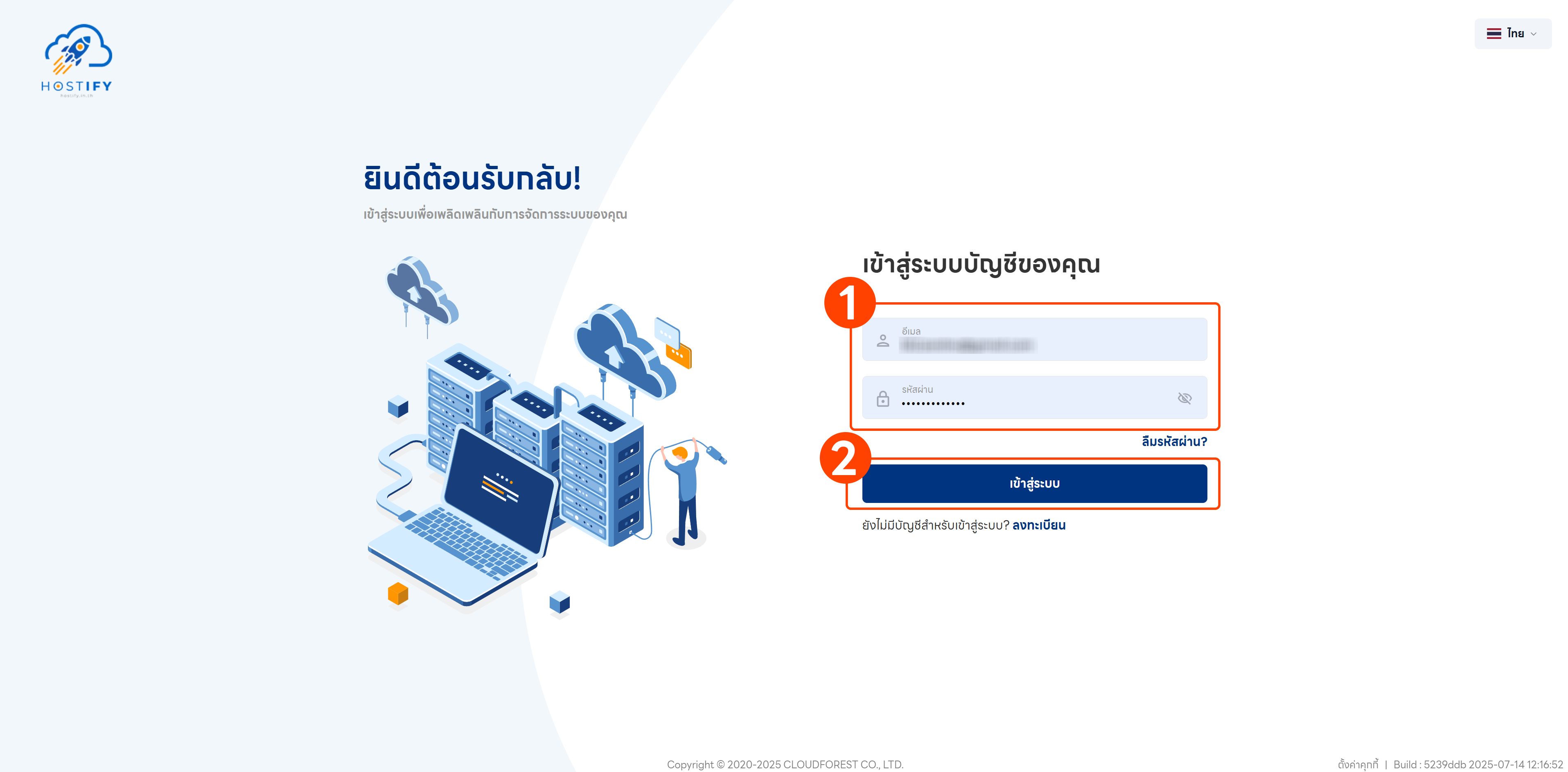
Section titled “Steps to Restore”Step 1: Log in at fleet.hostify.in.th
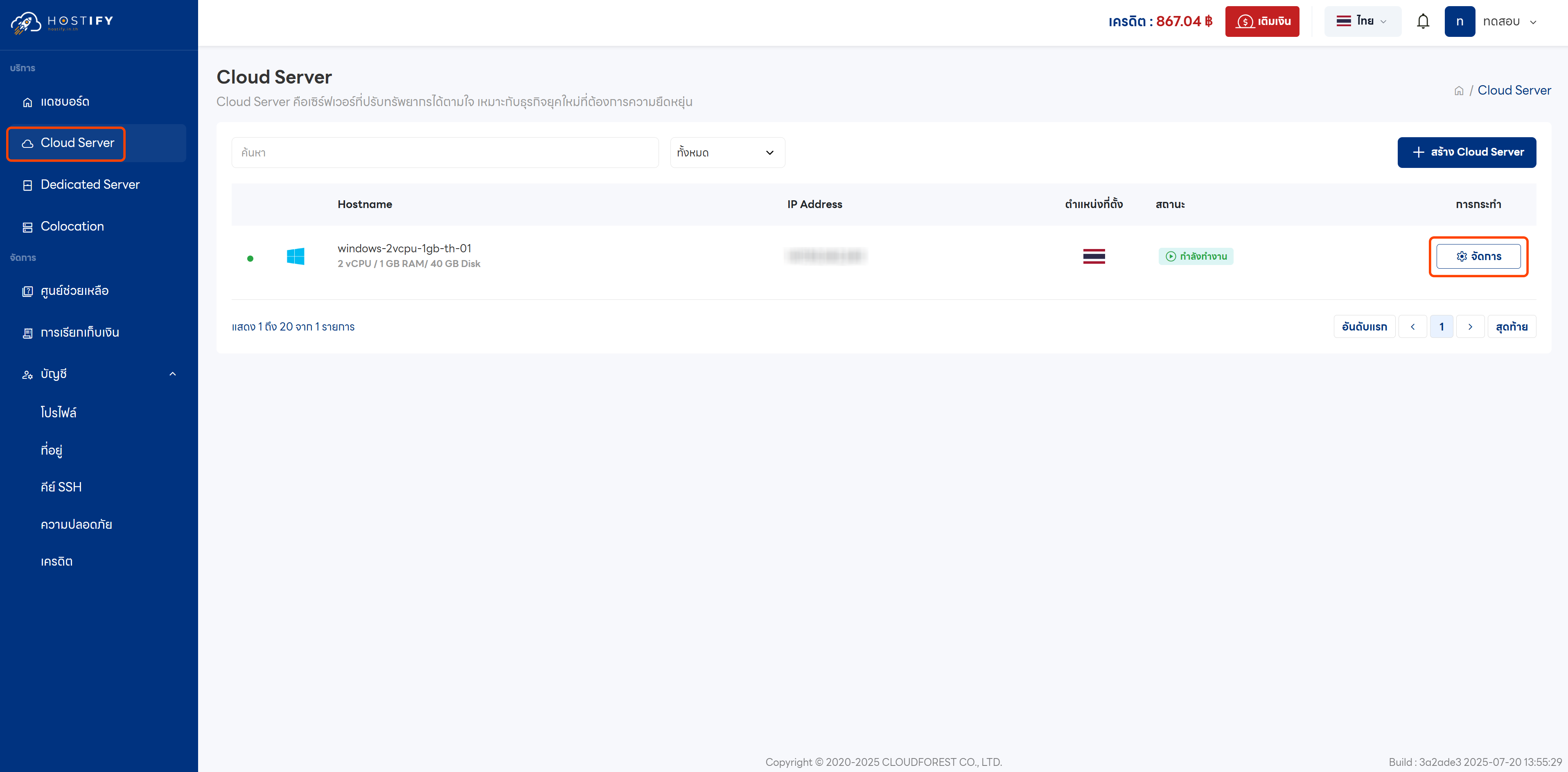
Step 2: Go to the management page for the desired Cloud Server
Step 3: Select the Backup menu to view the backup files created by the system
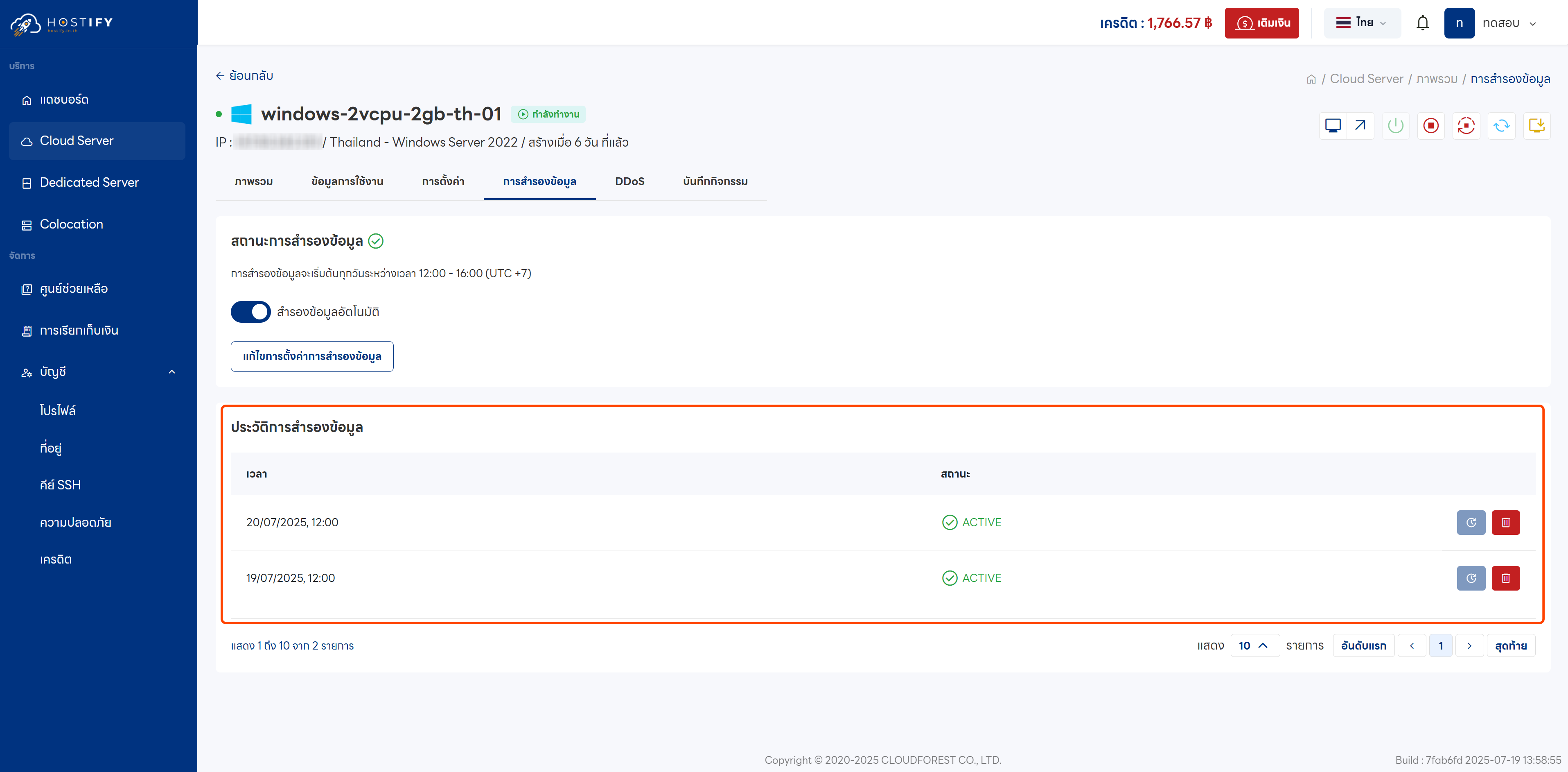
Step 4: Select the backup from the desired time period (if multiple backups exist)
Note: If the Backup button is still greyed out, the server must be stopped first. Use the command
sudo shutdown nowon Linux.
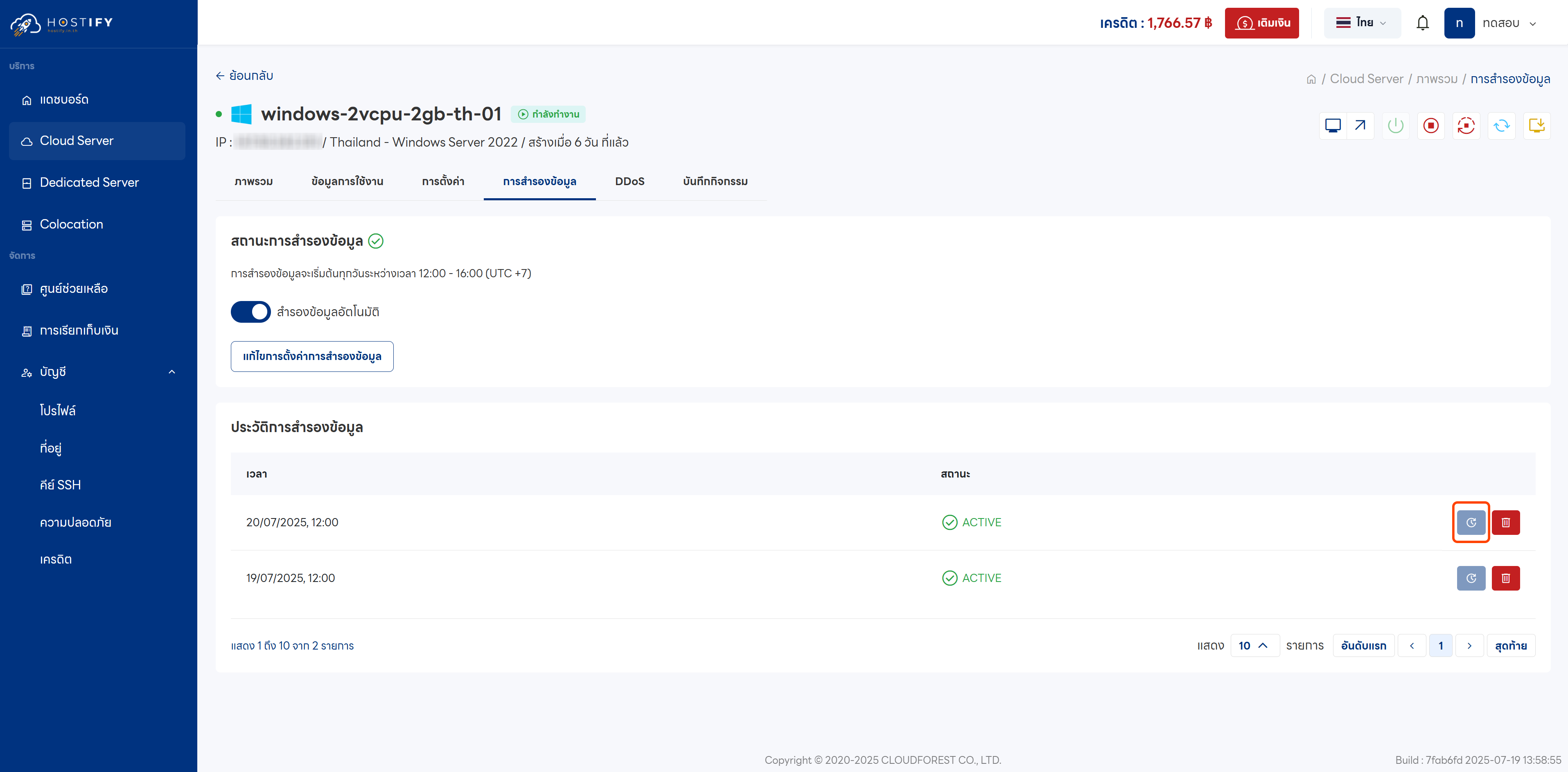
Step 5: Click the Restore button to confirm the restoration
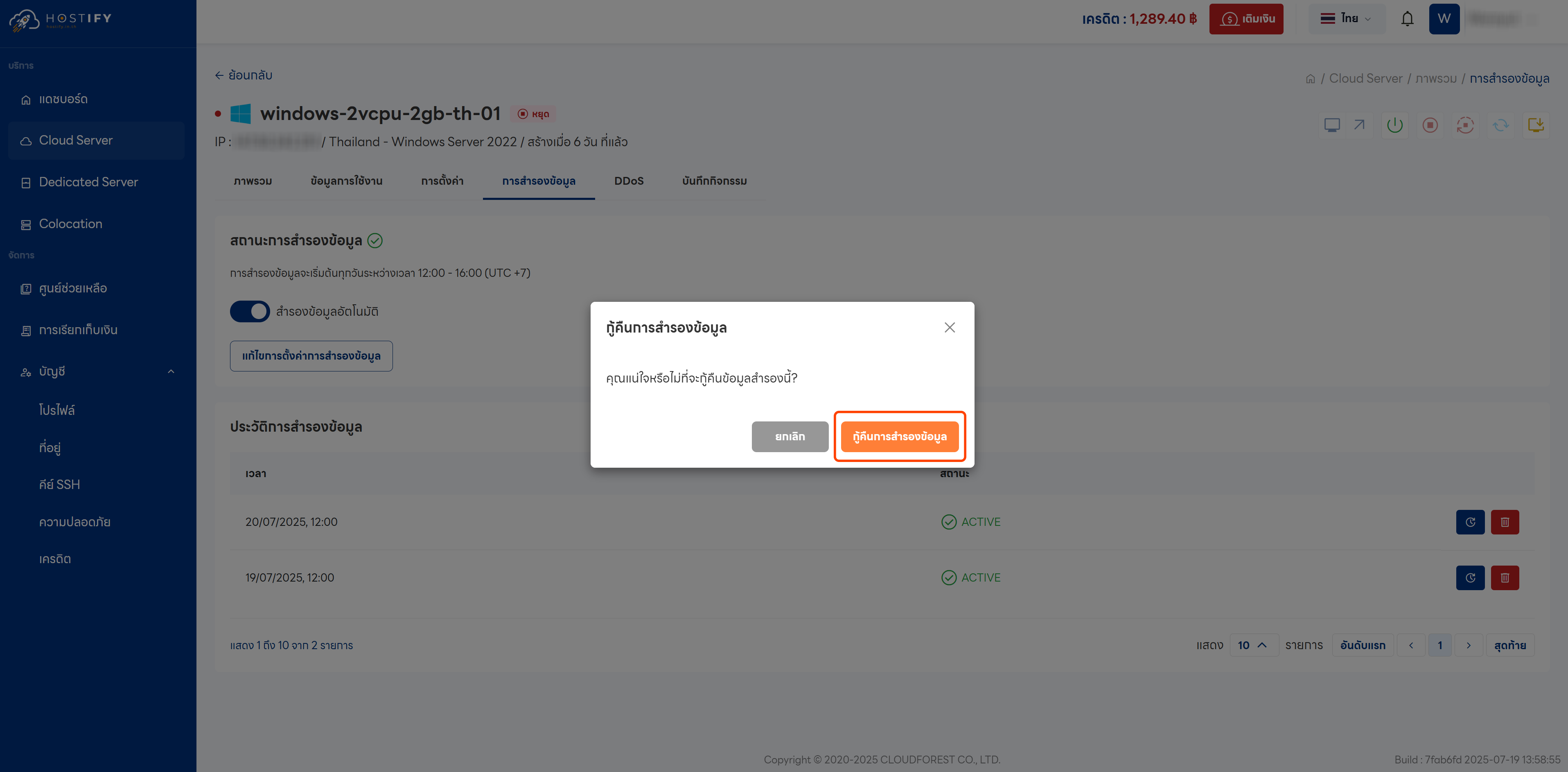
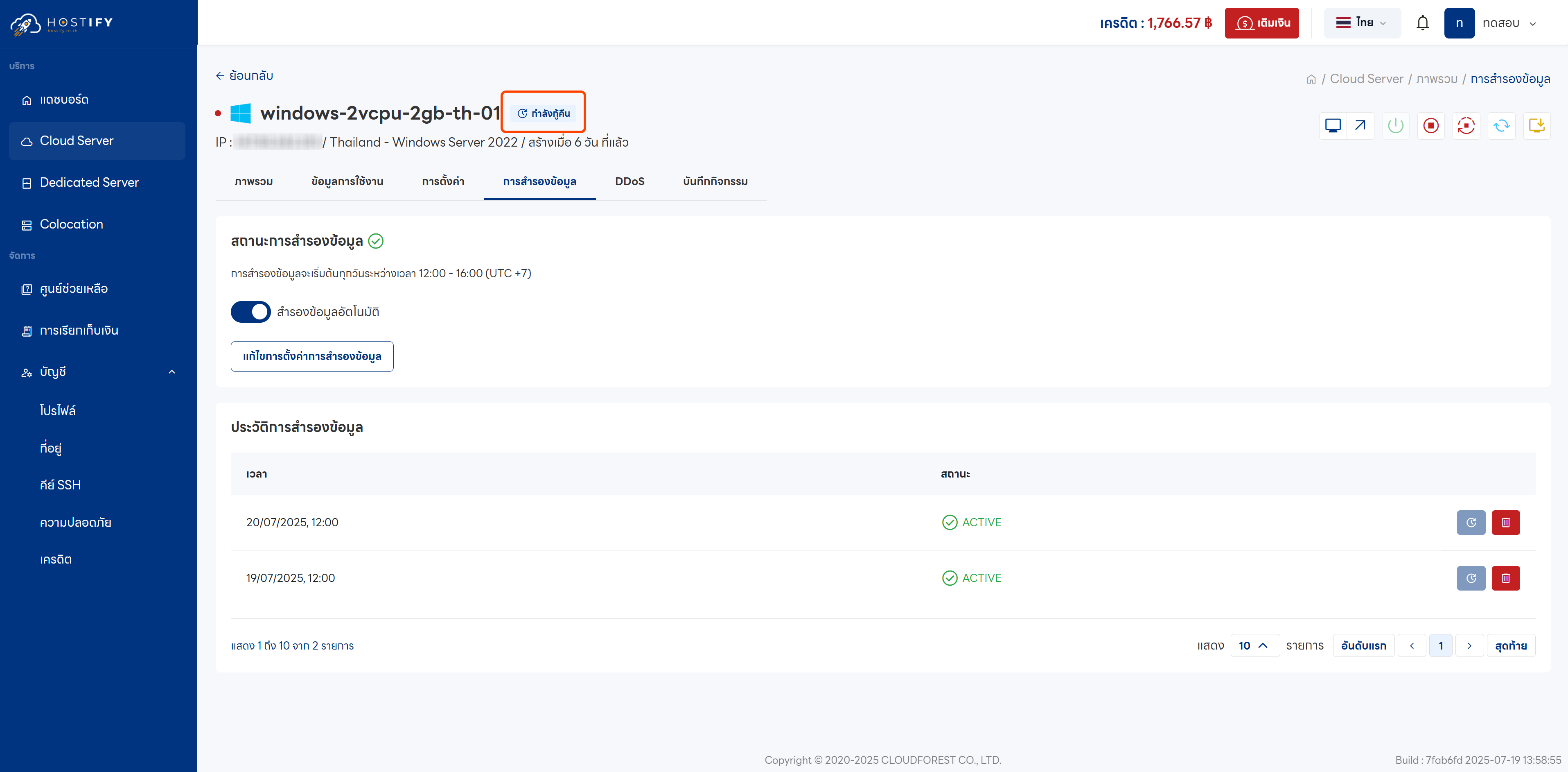
Step 6: The system will begin the restoration process. The duration depends on the server size.
Step 7: Once complete, the server status will return to Stopped
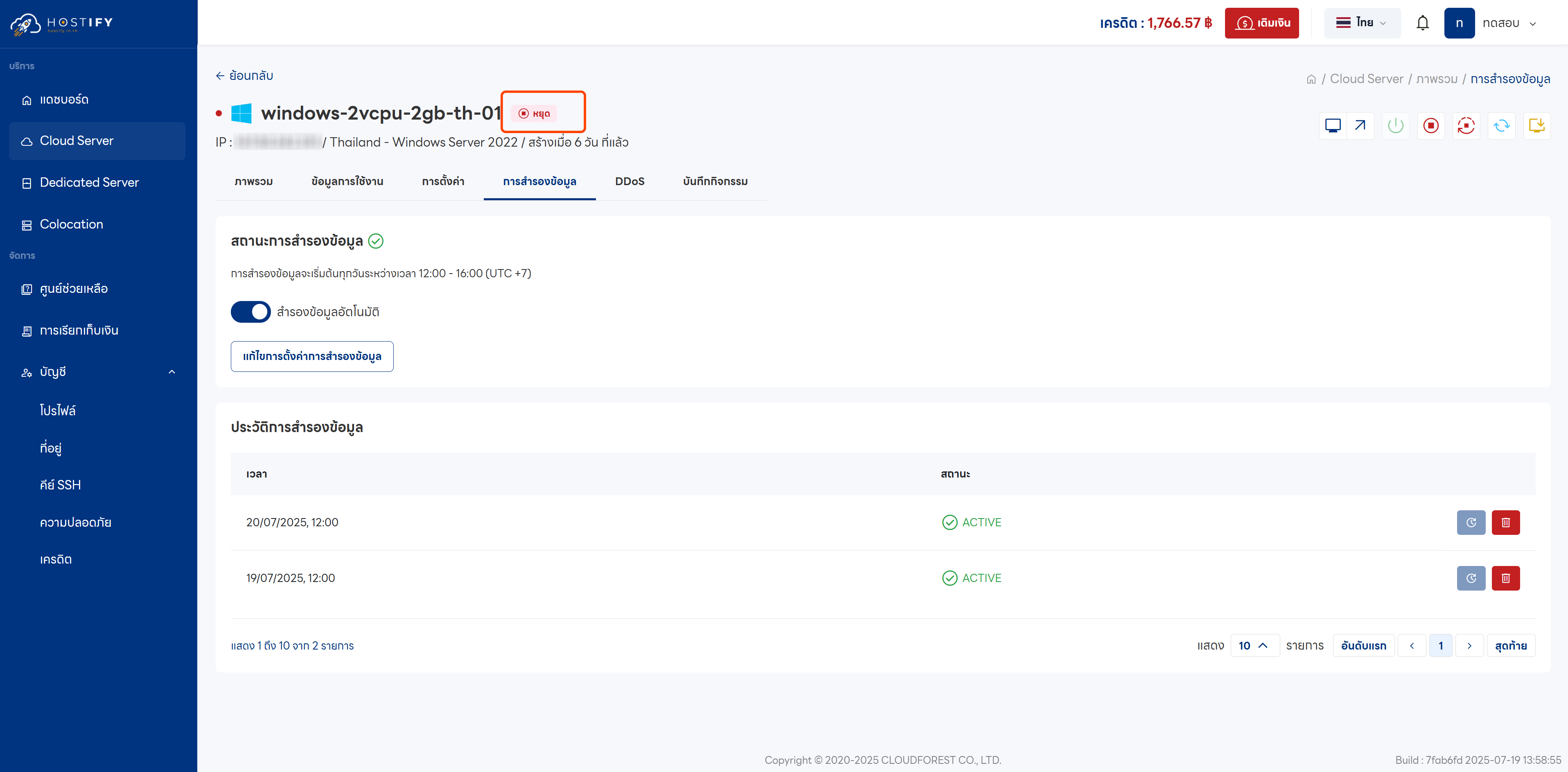
Step 8: Start the server to resume using it with the restored data