How to Pay for Services
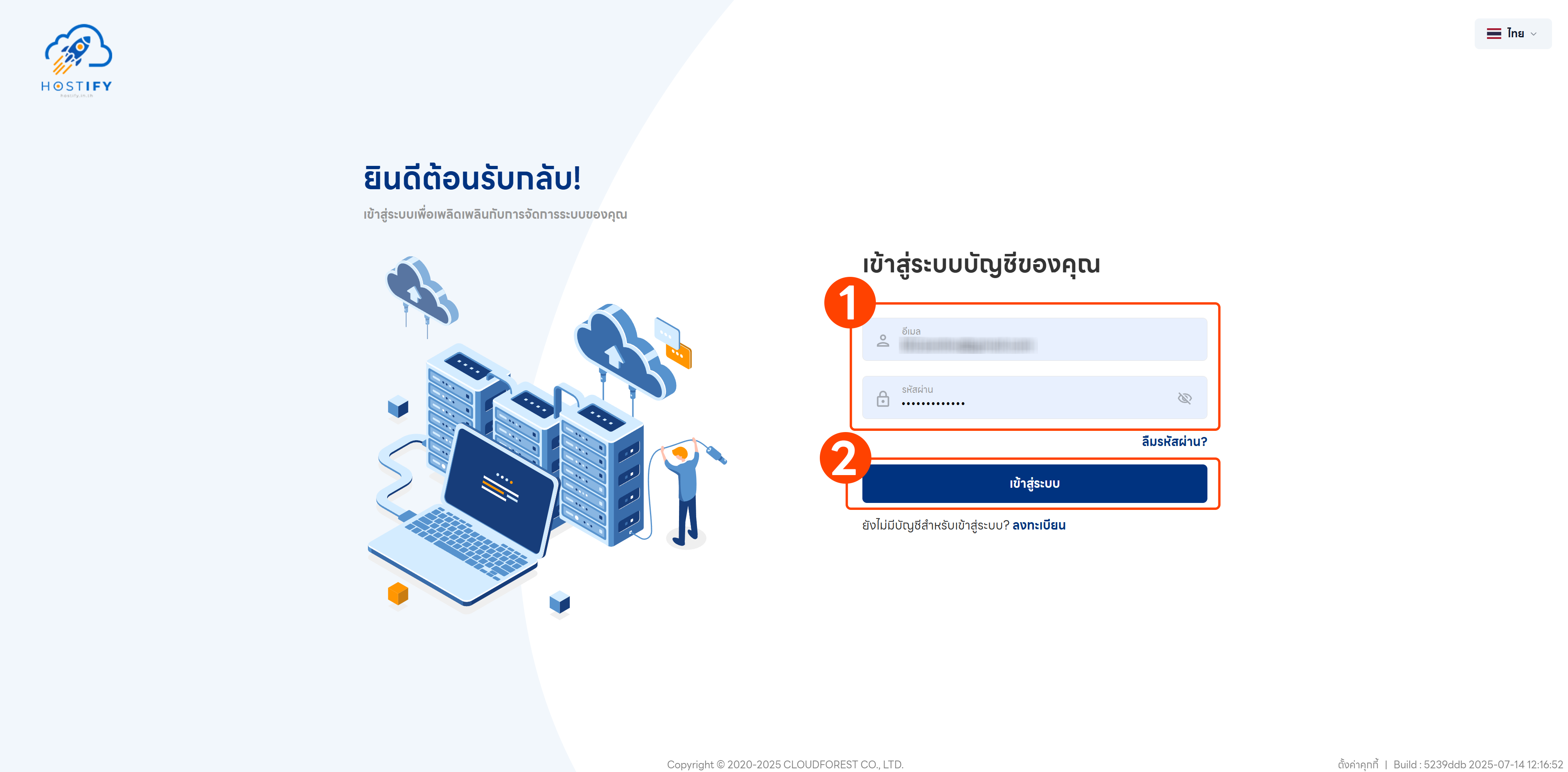
Step 1 — Log In
Section titled “Step 1 — Log In”Log in at fleet.hostify.in.th, or register if you do not yet have an account.
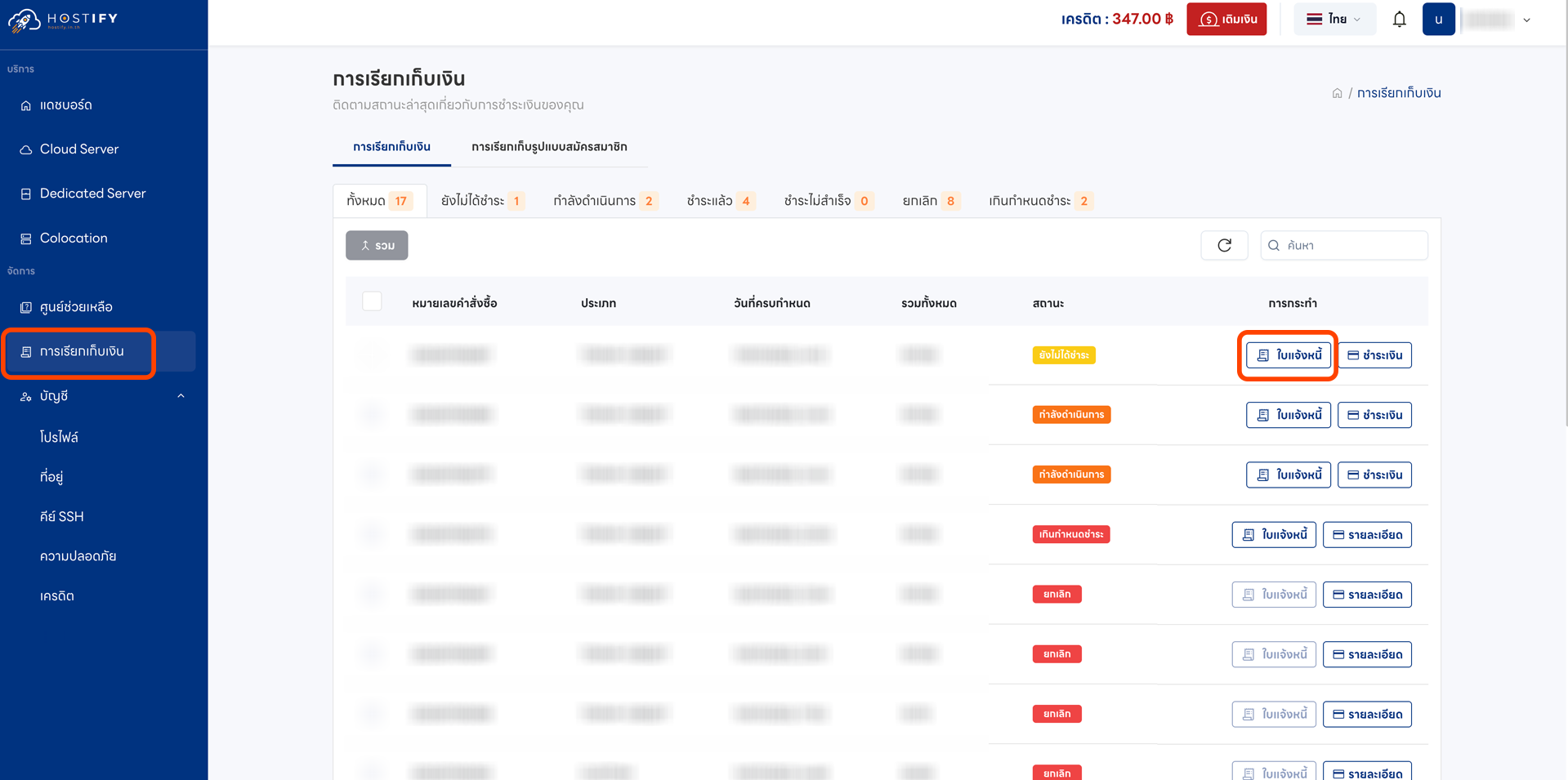
Step 2 — Go to Billing
Section titled “Step 2 — Go to Billing”Go to the “Billing” menu from the left sidebar and select the invoice you want to pay. If this is your first payment, you must fill in your billing address first.
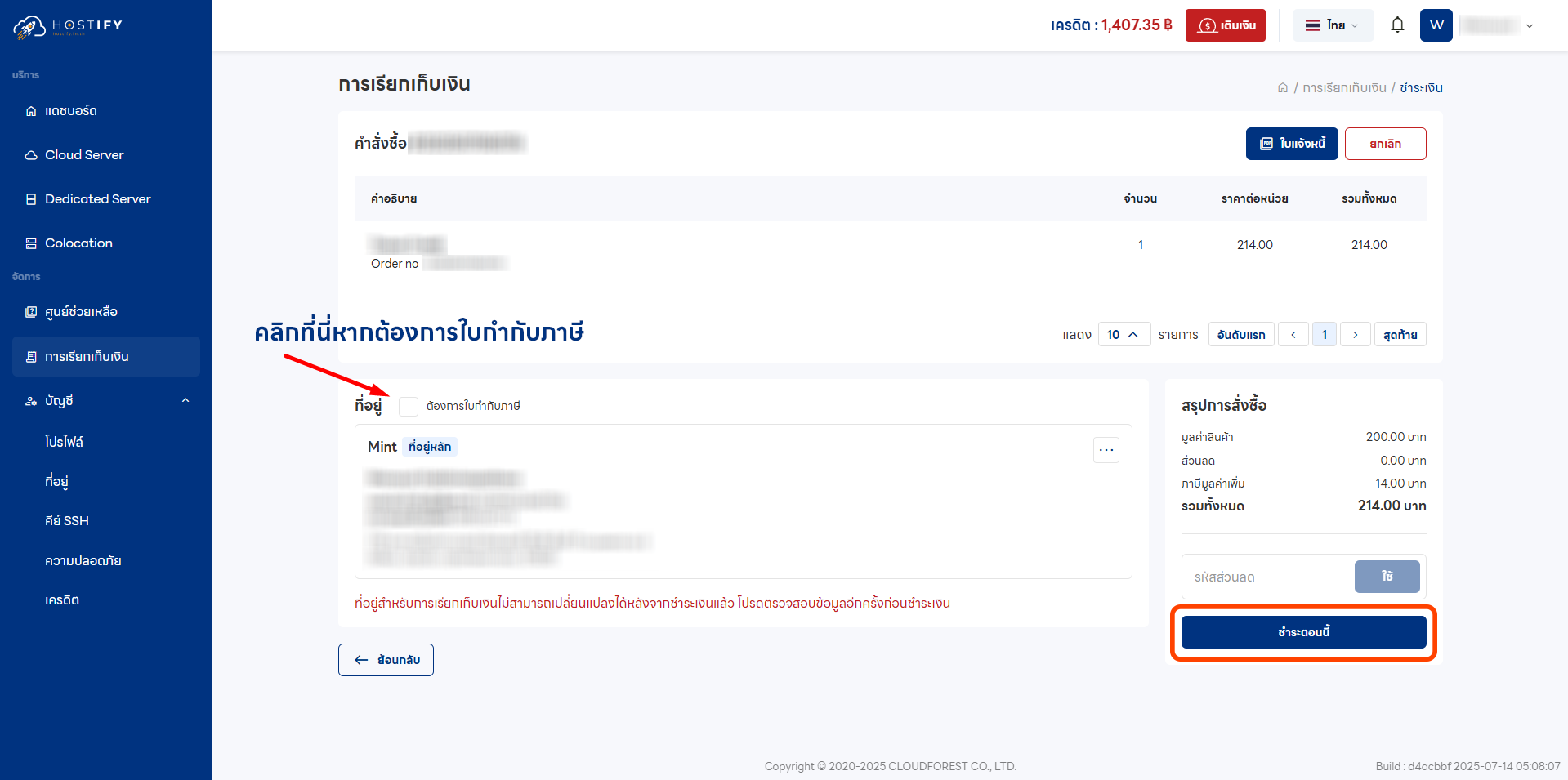
Step 3 — Review and Confirm
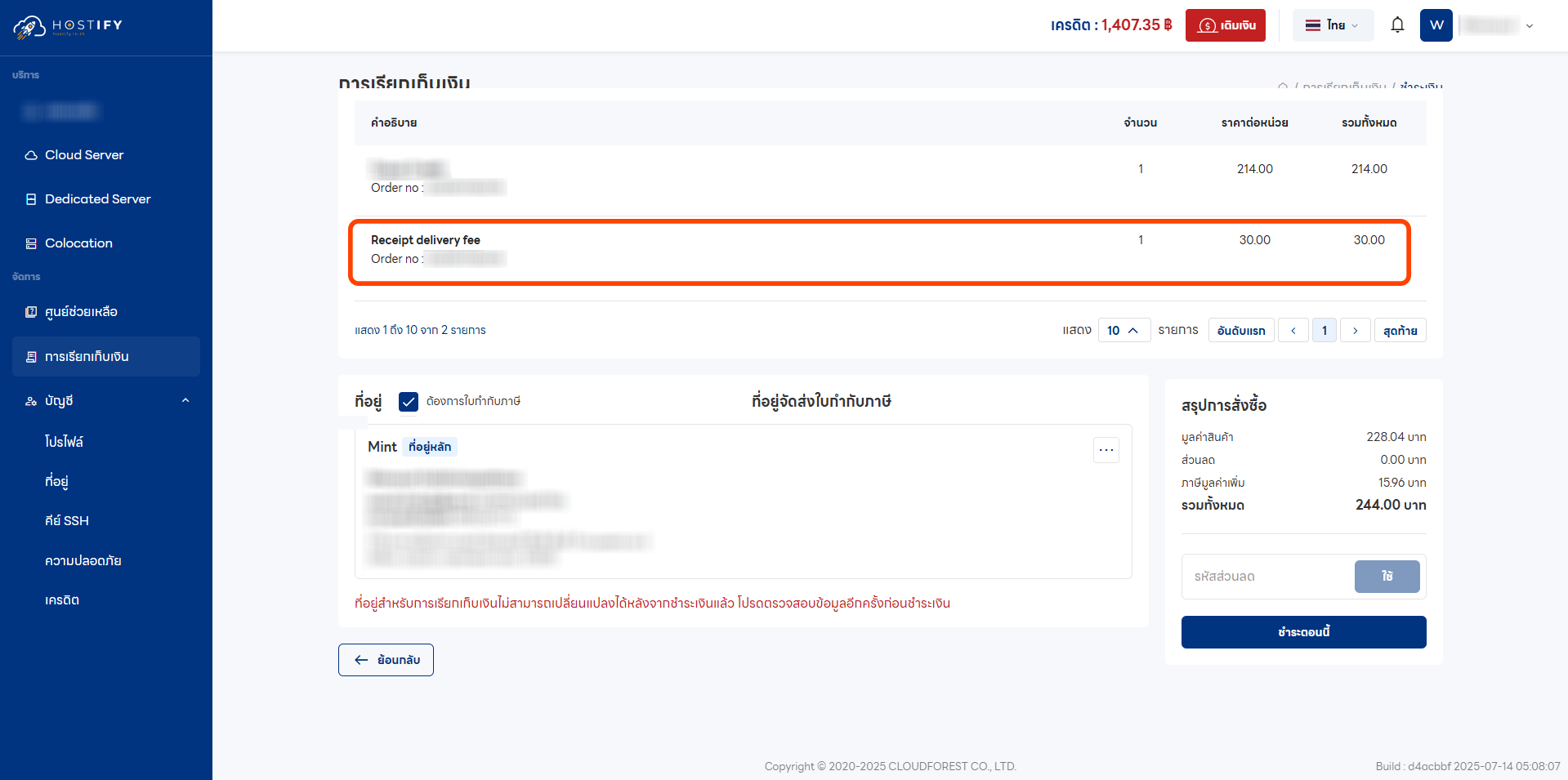
Section titled “Step 3 — Review and Confirm”The system will display the payment details. You can opt to receive a tax invoice (an additional charge of 30 THB including VAT applies). Then click “Pay Now”.
Step 4 — Complete Payment
Section titled “Step 4 — Complete Payment”The system will redirect you to the Payment Gateway. For a successful payment, you will receive a “Transaction Complete” confirmation.
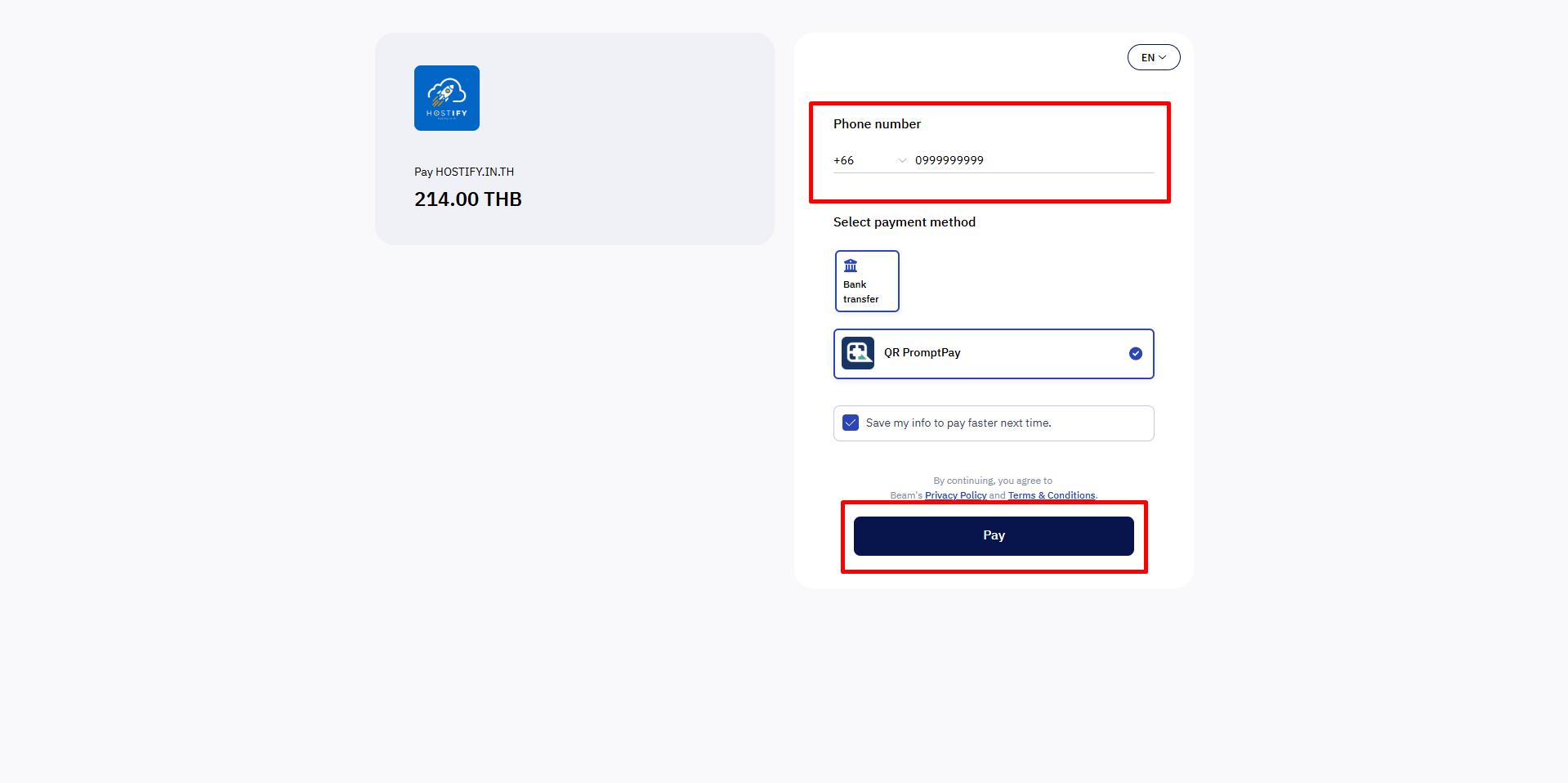
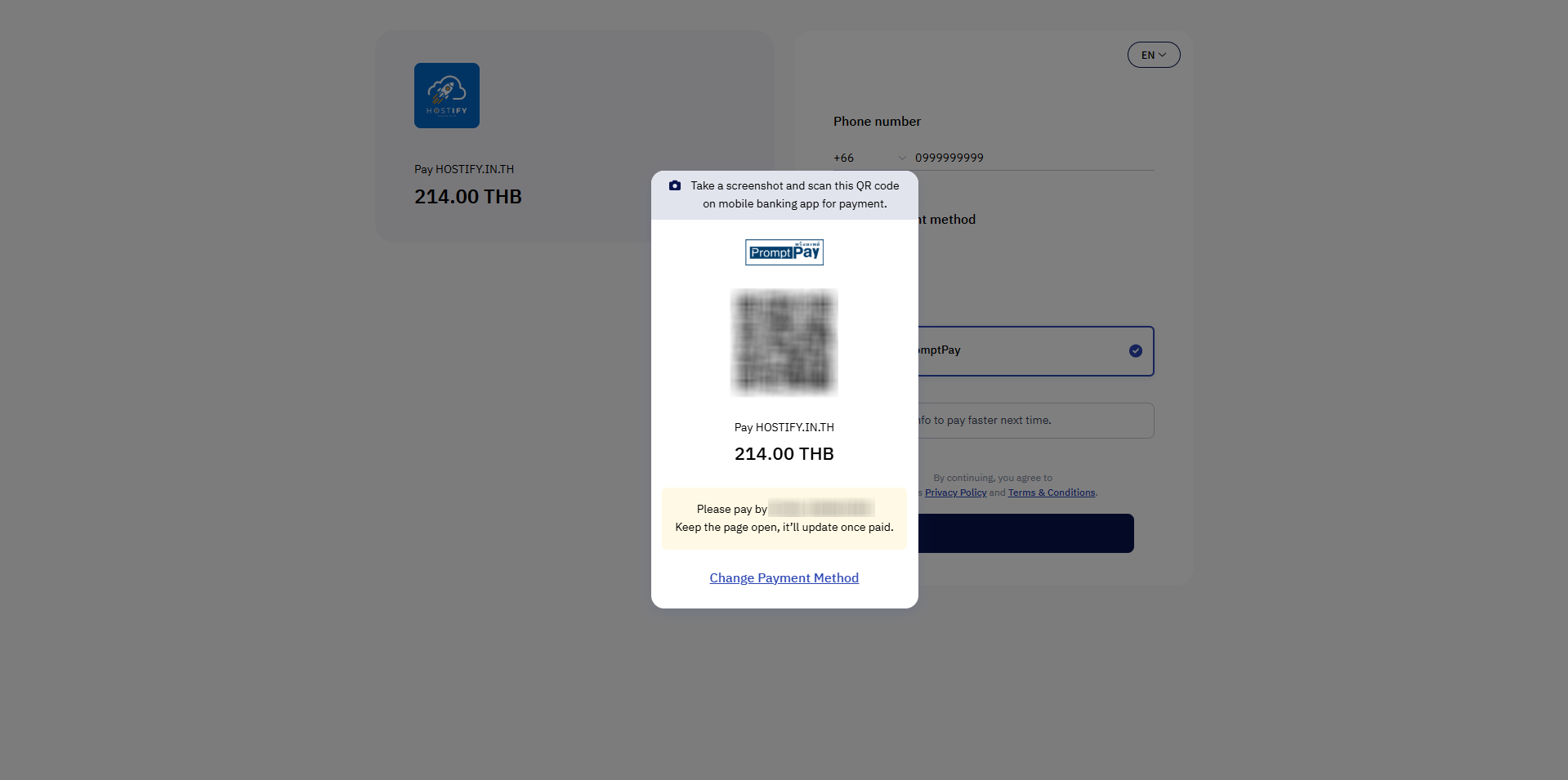
Note: Corporate customers who cannot use QR PromptPay should open a Support Ticket to request an alternative payment method.
Viewing Receipts
Section titled “Viewing Receipts”Invoices and receipts can be retrieved through the Billing section within 24 hours of successful payment.