How to Change the Windows Server Password
Supports Windows Server 2008, 2012, 2016, 2019, 2022, 2025
There are 3 ways to change the Administrator password on Windows Server.
Method 1: Via Control Panel
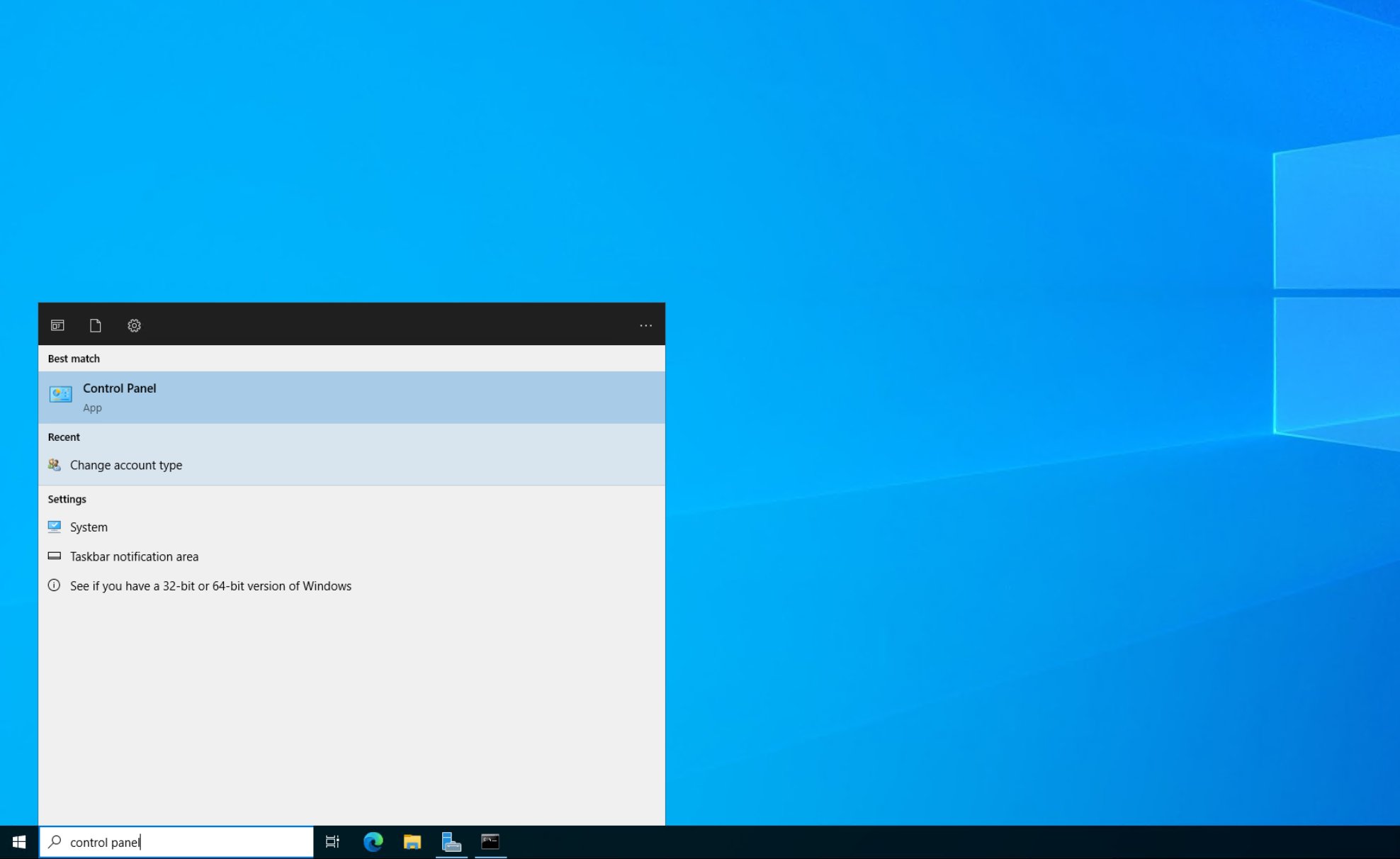
Section titled “Method 1: Via Control Panel”- Go to Start > Search > Control Panel
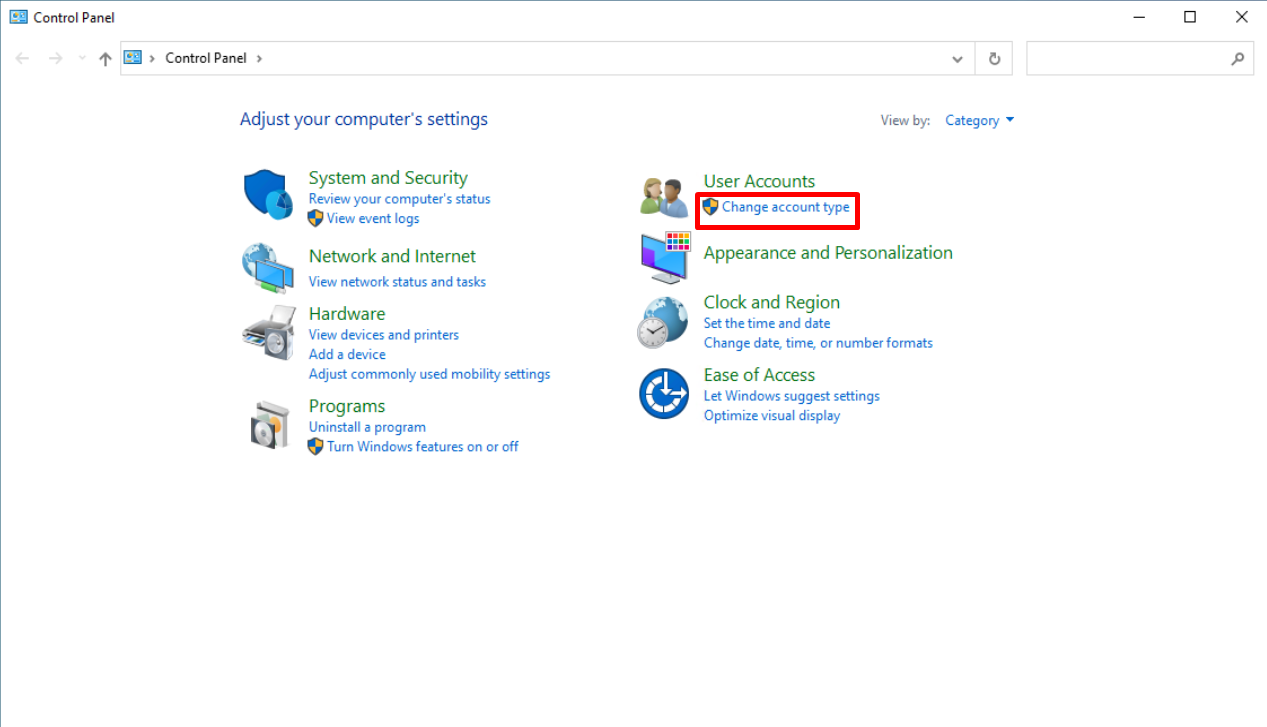
- Select User Accounts
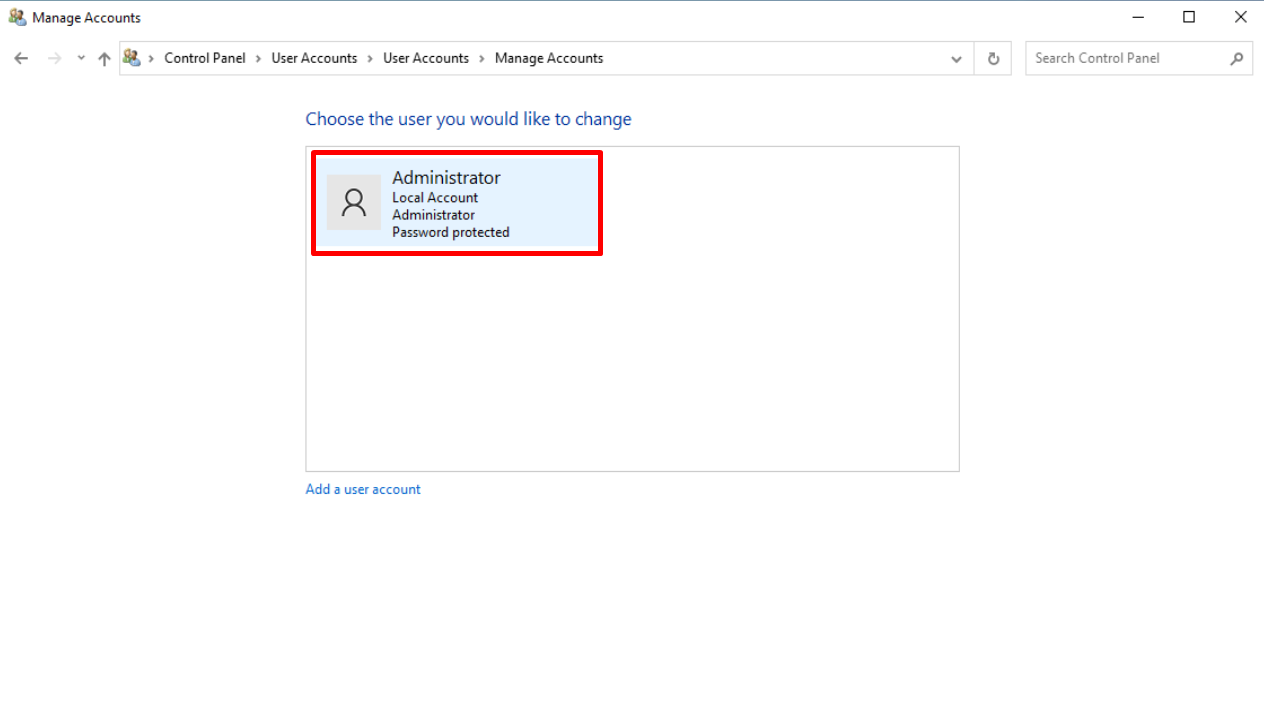
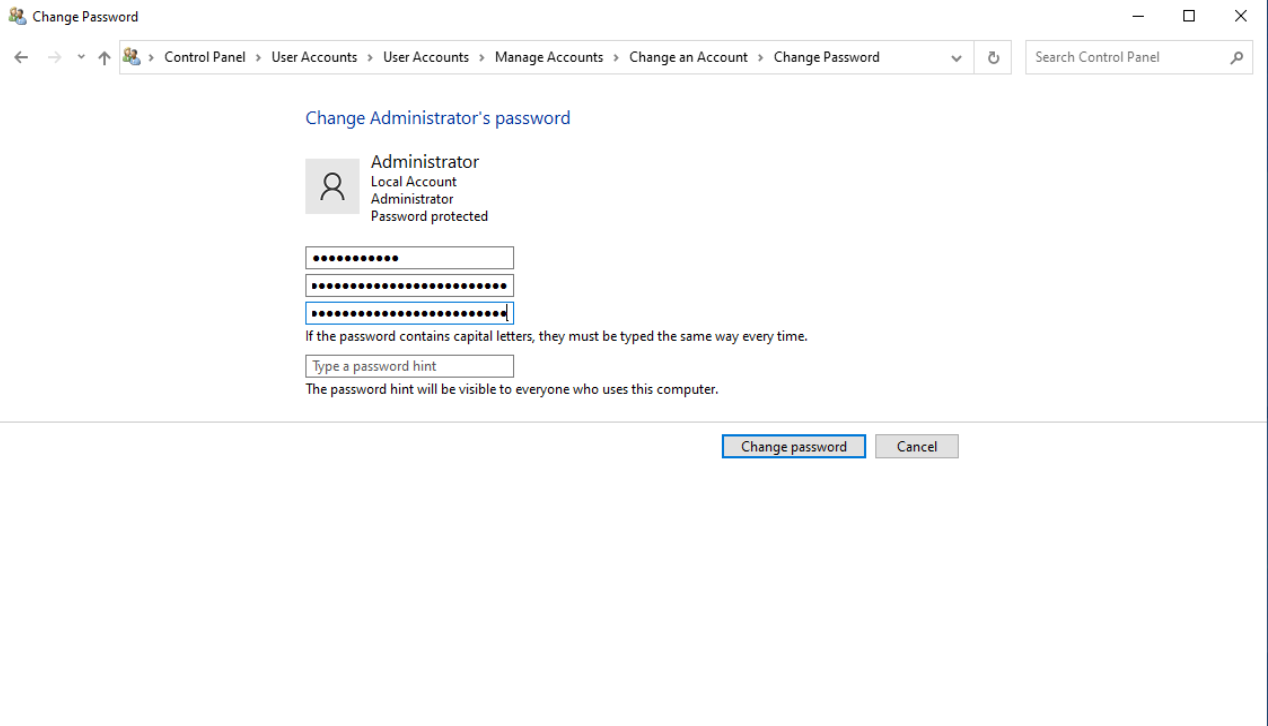
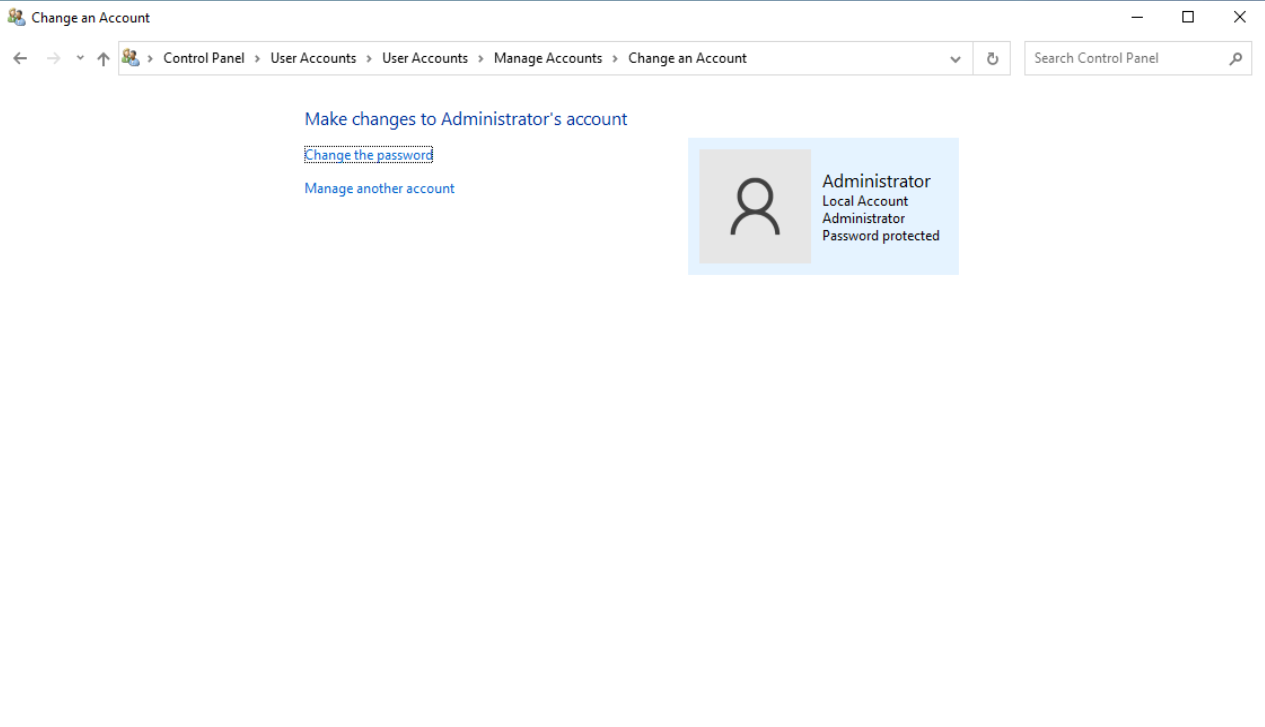
- Select the Administrator account and click “Change the password”
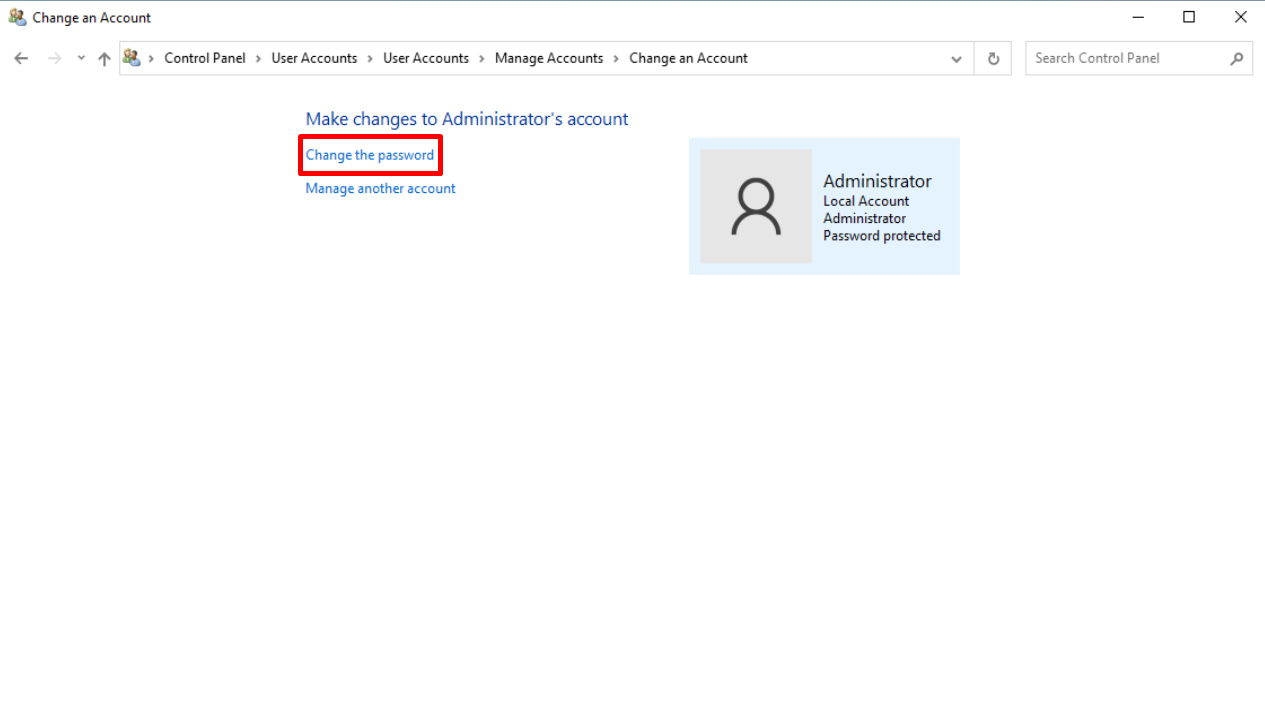
- Enter the current password, then enter the new password twice (they must match), then click OK
Method 2: Via Computer Management
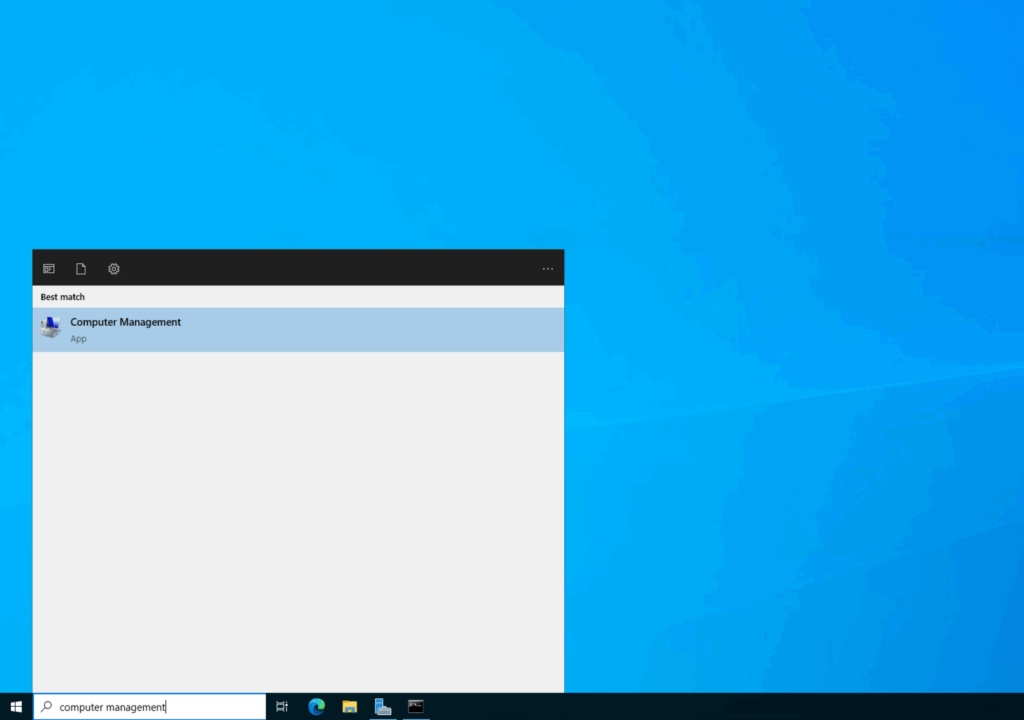
Section titled “Method 2: Via Computer Management”- Open Computer Management from the Search Box
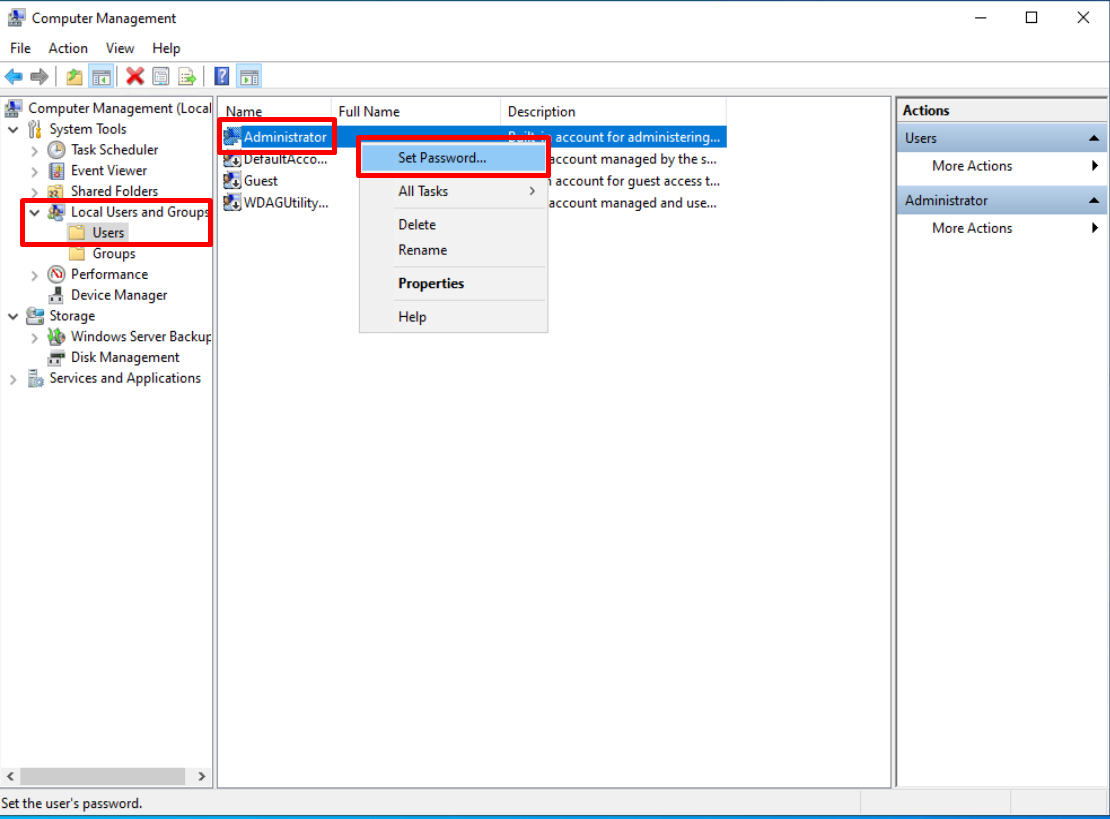
- Go to Local Users and Groups, right-click the Administrator account, and select “Set Password”
- Confirm the action, enter the new password twice, then click OK
Method 3: Via Command Prompt
Section titled “Method 3: Via Command Prompt”- Open CMD and type the command:
Replace [newpassword] with the desired password and press Enter.
Password Requirements
Section titled “Password Requirements”The password should:
- Be at least 8 characters long
- Contain at least 2 of the 3 following types: letters (a-z, A-Z), numbers (0-9), or special characters (!@#$%^&*()_+|~-=`{}[]:”;’<>?,. /)