How to Fix Remote Desktop Error: An internal error has occurred.
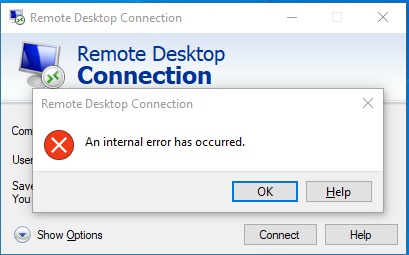
When connecting via Remote Desktop and encountering the message “An internal error has occurred”, the issue can be resolved by editing the Windows Registry.
Fix Steps
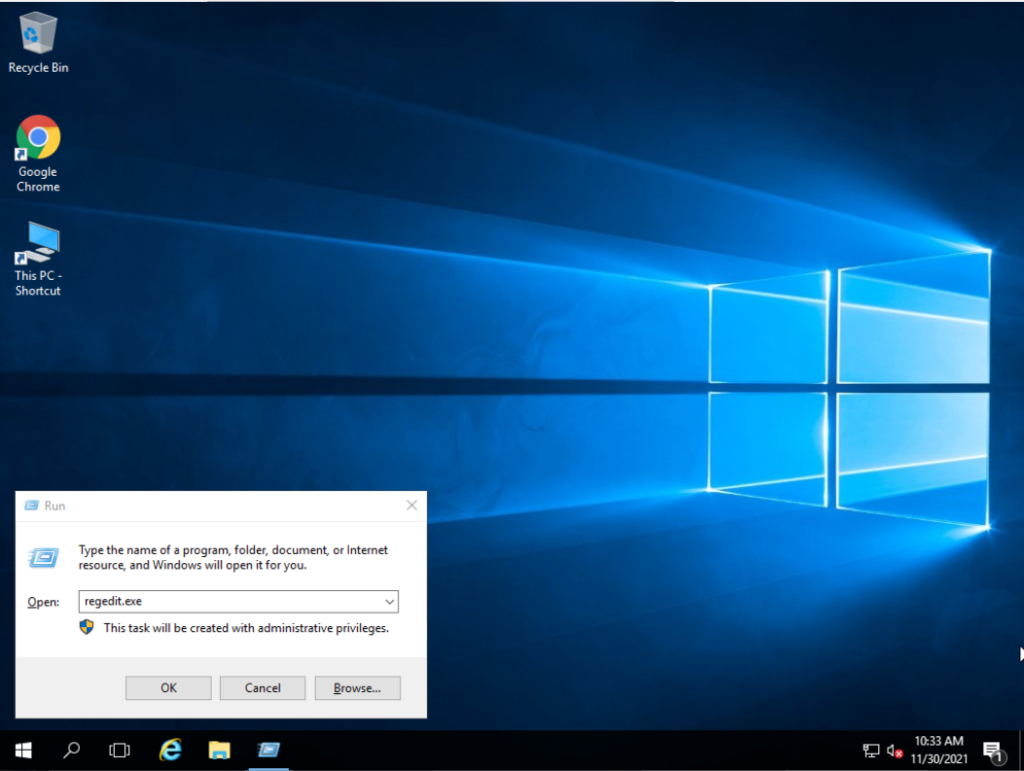
Section titled “Fix Steps”- Press Ctrl+R, type “regedit.exe” in the dialog box, then click OK
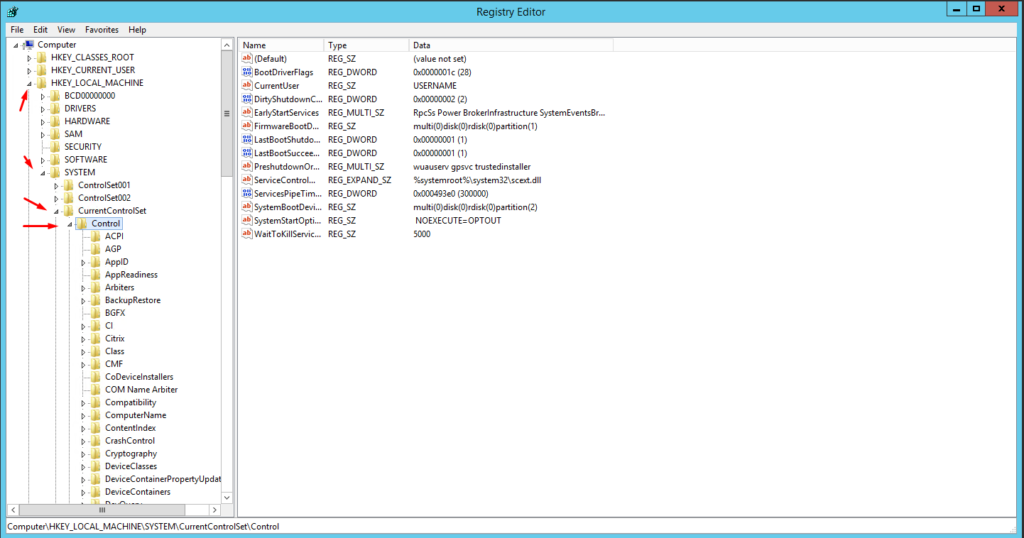
- Navigate to:
HKEY_LOCAL_MACHINE > SYSTEM > CurrentControlSet > Control
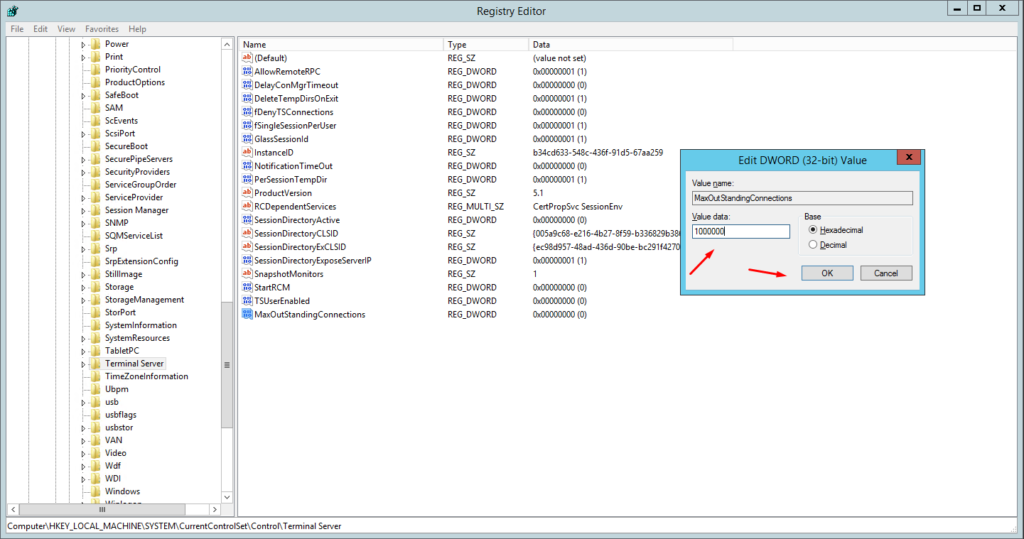
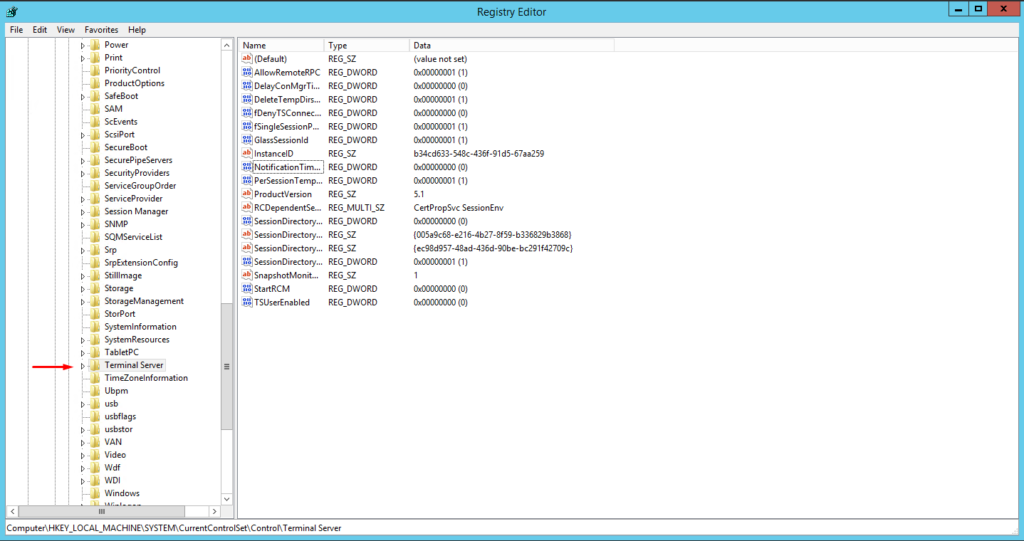
- Scroll down to find “Terminal Server”
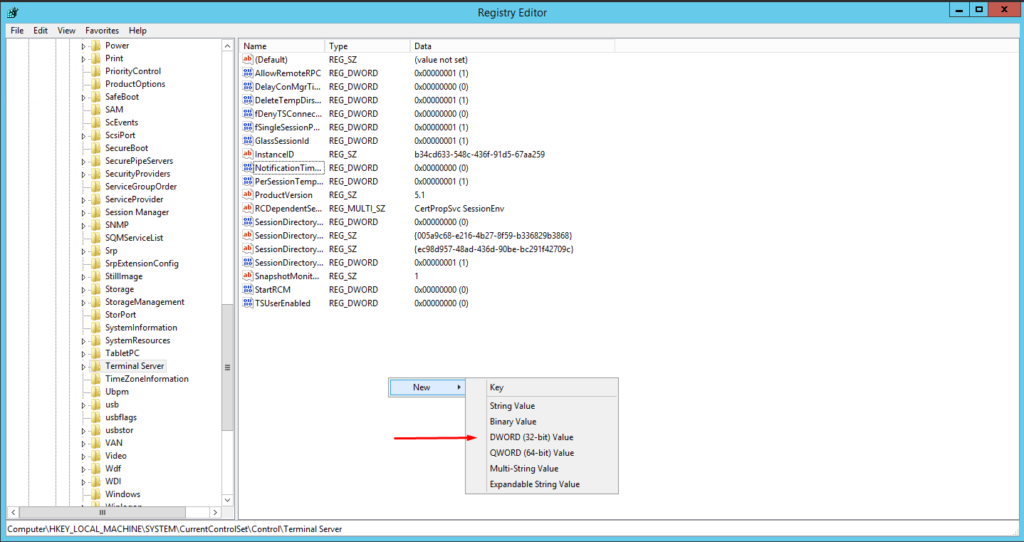
- Right-click and select “New > DWORD (32-bit) Value”
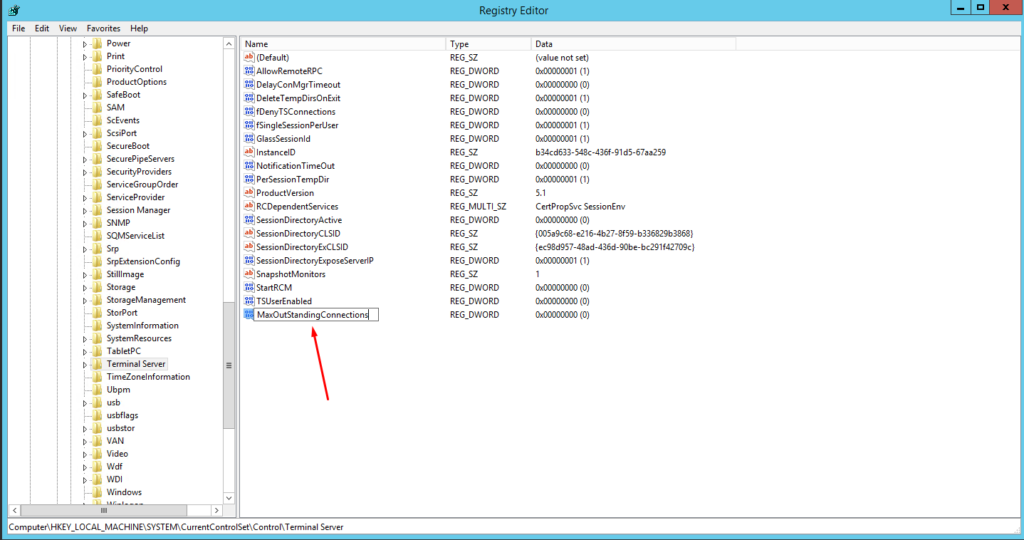
- Name the new entry “MaxOutStandingConnections”
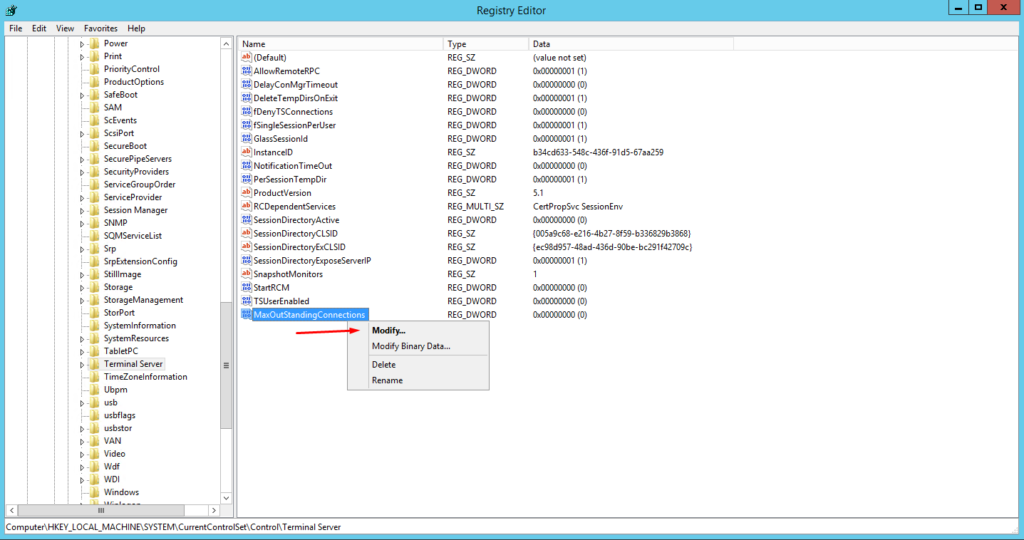
- Right-click the entry and select “Modify…”
- Enter the value “1000000” (one million) and click OK